How to revive or revert to MIUI: firmware installation via SP Flash Tool
Use 7zip or Winrar to unzip all downloaded files. This ensures that you can access the necessary files for the firmware installation process.
Install using the link provided or go to the Microsoft Store and install it.
Find the USBDK installation file and install it.
Navigate to the 'Mtk Client' folder within the unzipped files. This folder will contain the necessary files to install prerequisites for the process.
Inside the 'MTK_Client' folder, run the 'MTK Client Menu.bat' file.
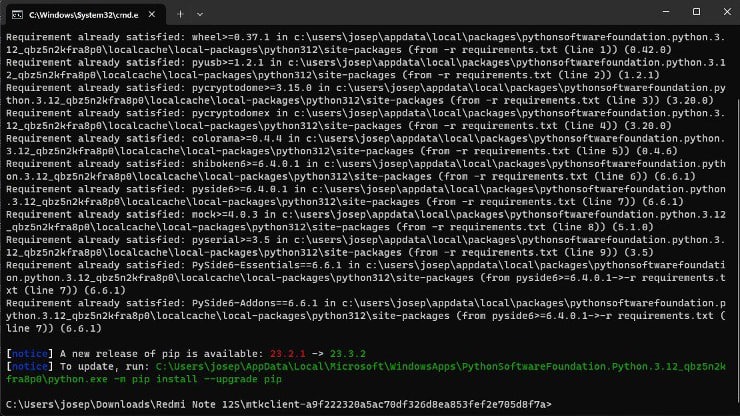
Press 1 and then Enter to install the requirements. Then, press Enter
again to return to the main menu.
Use a USB cable to connect your phone to the PC.
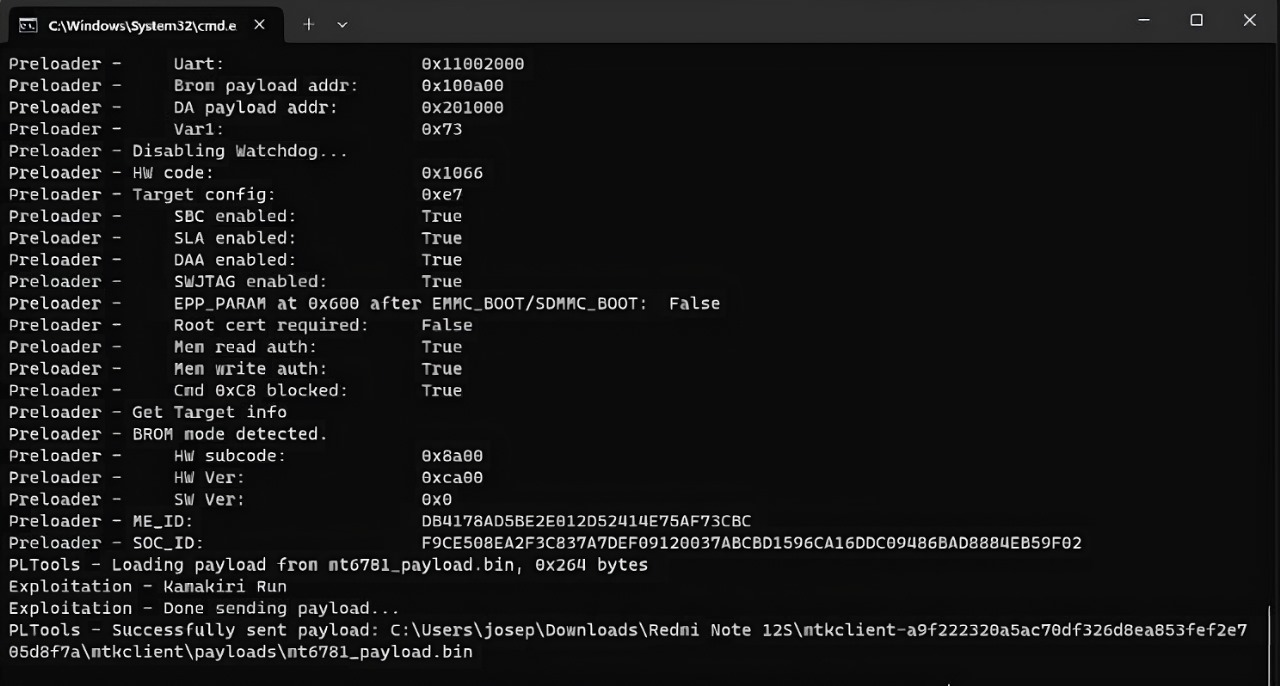
Run option 3: 'Bypass Brom'. Once you press Enter, simultaneously press the volume down, volume up, and power buttons on your mobile device. (Note: when the process begins, release the buttons.) This will start a process in the command prompt window (cmd) that indicates the bypass.
Use SP Flash Tool to load the firmware onto your device. Follow the specific instructions provided in the video tutorial to properly set up SP Flash Tool and successfully load the firmware.
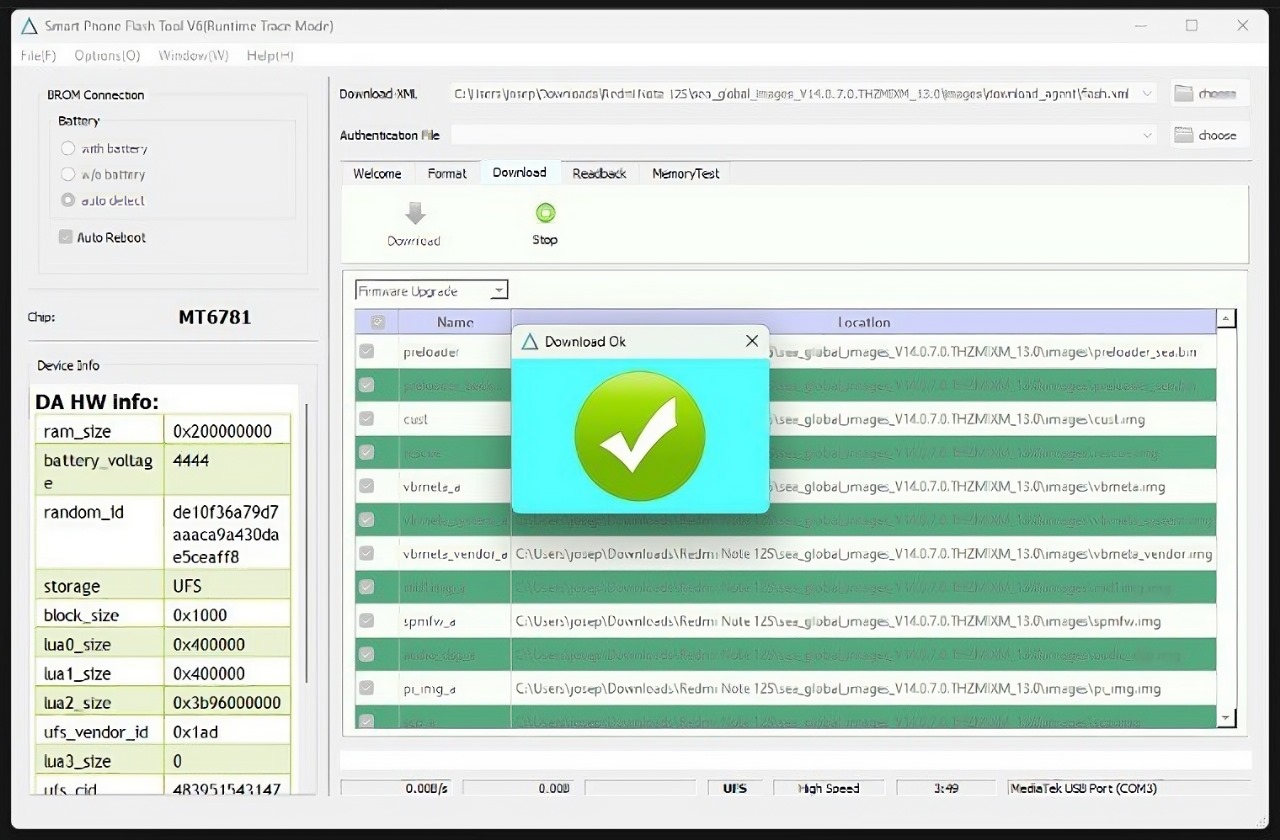
• If the installation does not start, repeat the Bypass Brom process.
• If you don't want to install this version of MIUI, you can go to the Firmware section and choose the one you want to install.
• By following these steps, you will be able to install the firmware on your mobile device using SP Flash Tool effectively. Remember to always follow the instructions carefully and make sure you have a stable connection between your PC and your device during the whole process.